![2023-Roseman_Labs-logomerk_color.png]](https://support.rosemanlabs.com/hs-fs/hubfs/2023-Roseman_Labs-logomerk_color.png?width=40&height=40&name=2023-Roseman_Labs-logomerk_color.png)
To stop an analysis from being executed, you can close or delete it. In both cases, no analysts will be able to execute the analysis anymore, even if they have an approval file. When you close an analysis, it stays visible in the analysis overview. When you delete an analysis, it is gone entirely.
Closing an analysis
Who can do this:
-
Owning Analyst (the user who created the analysis)
-
Approvers
-
Admins
You can close an analysis to prevent further execution while keeping the record in your overview.
-
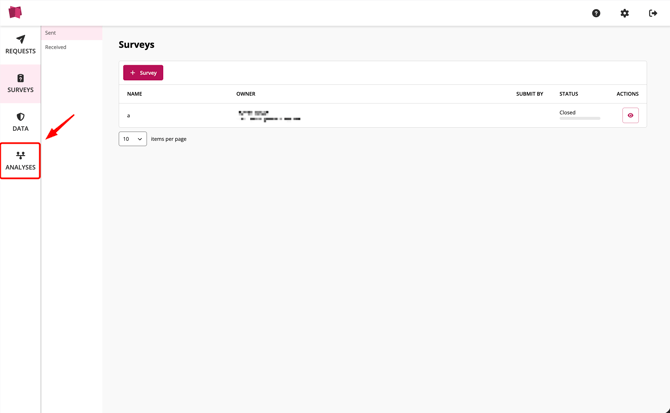
Log in to your account and go to the 'Analysis' page using the navigation bar.
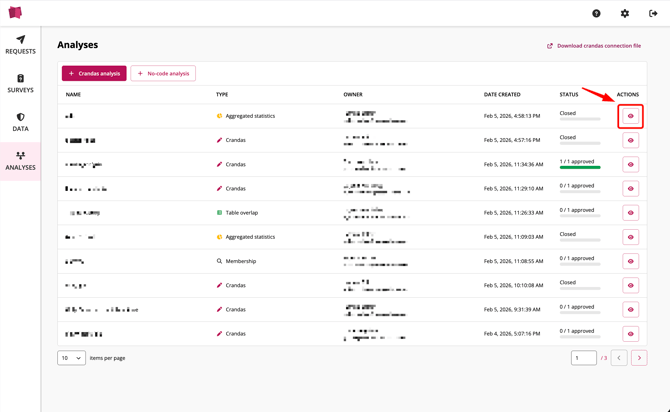
- Click on the 'View' button (eye icon) for the analysis you wish to close.
- Scroll to the Close analysis section. This is located just above the analysis script or the no-code template card (depending on the type of analysis).
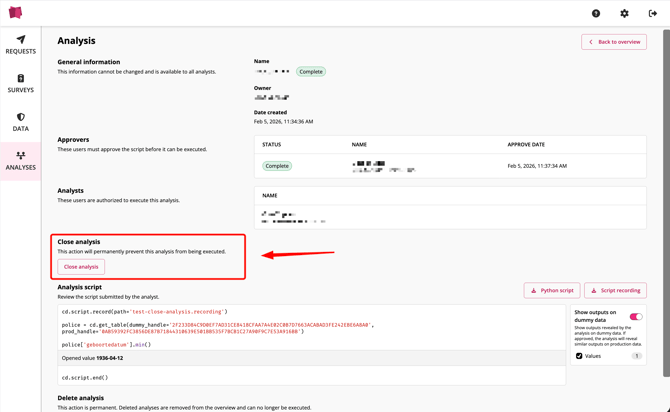
- Click the 'Close analysis' button.
You can check the current status by looking at the badge next to the analysis name on the detail page, or by the status column on the analysis overview page.
Deleting an analysis
Who can do this:
- Owning Analyst
-
Admins
Deleting an analysis will close it and remove it entirely from the overview. It will only be present in the audit log.
-
Log in to your account and go to the 'Analysis' page using the navigation bar.
-
Click on the 'View' button (eye icon) for the analysis you wish to delete.
-
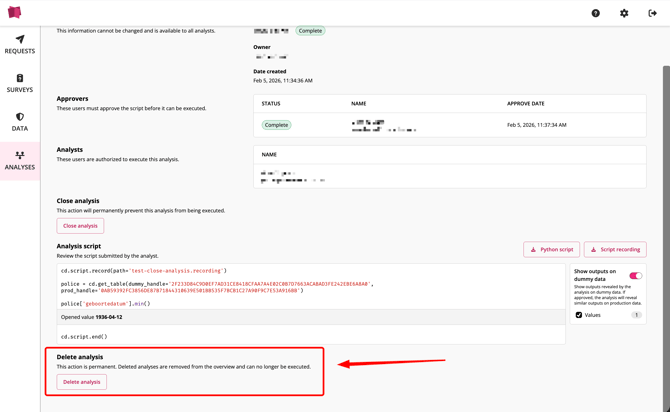
Locate the Delete analysis section at the bottom of the page.
-
Click 'Delete analysis'.
The analysis will now be closed and removed from the overview.
Thank you for taking the time to read this article. If you have feedback or need more information on specific topics, feel free to 'Submit an issue' in the Help Center.